
How to share logs
When you report a bug you’ll often be asked to share your application logs to help with debugging. This article will explain how you select the right session where your issue actually occurred and how to export its log messages.
You can view your log messages by opening the Debug page in Settings and clicking on the View Logs button.
Log levels
Section titled “Log levels”There are 6 log levels available:
| Level | Description |
|---|---|
Fatal |
Errors that prevent the application from working as expected. |
Error |
General things that went wrong. |
Warning |
Something resulted in a sub-optimal situation. |
Info |
Important events that happened (e.g. “App started.”) |
Debug |
Messages that help with debugging. |
Trace |
Very verbose logging to help understand the execution of the app better. |
Before sharing your logs for an issue, please change the logging level to Debug by opening the Settings page, navigating to Debug and selecting
Debug in the Log level dropdown. Then reproduce the issue and share the current session.
Sessions
Section titled “Sessions”Crossonic stores logs for 7 days after which they are automatically deleted. However, by default you only see log messages of events that occurred after the last application start. Everytime the app is started a new session is created. To view logs of past sessions click on the currently selected session at the top of the Logs page. Sessions are named after the time the app was started and contain all messages between the start of the app and the next time the app was fully closed.
Make sure that the correct session is selected before exporting/sharing your logs.
Export/share
Section titled “Export/share”After you reproduced the issue with Debug log level enabled and you selected the right session, you can export the currently
shown logs by clicking an the share or export button in the top-right corner of the logs page. Depending on the current platform only one of those buttons
might be available:
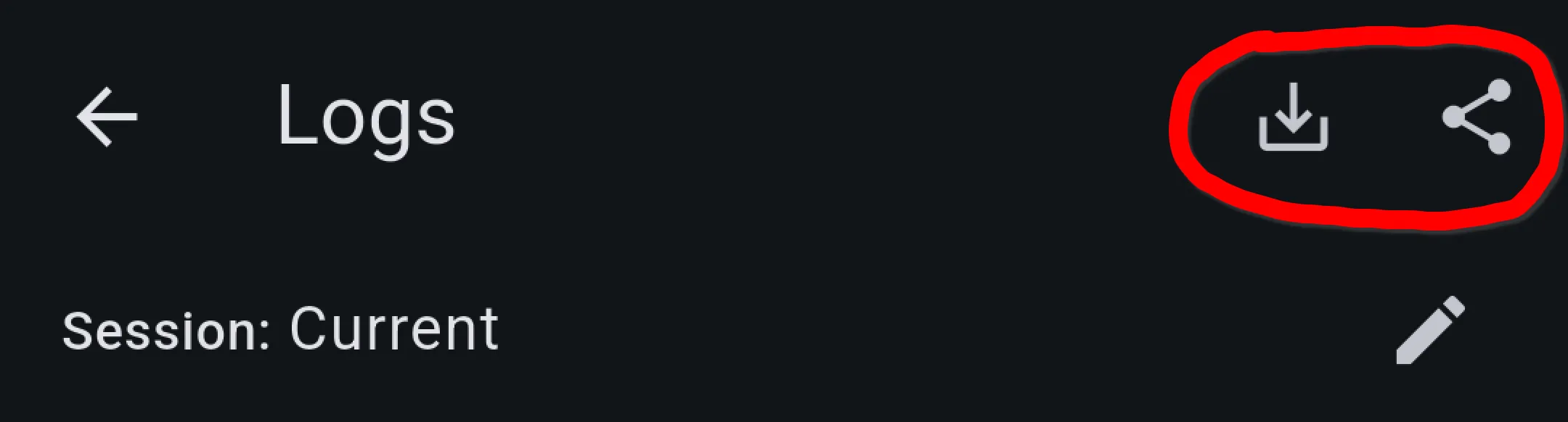
- The export button (left in the picture) allows you to save the logs as a TXT-file.
- The share button (right in the picture) opens the system share dialog.
When clicking either of those buttons, you’ll need to choose between Save/Share full log and Save/Share filtered log. The first option includes all available messages of the selected session and the second option only includes the messages currently visible due to the selected log level filters and search.