Install on Windows
Crossonic offers an installer file for Windows.
Install
Section titled “Install”Visit the releases page, scroll down to Assets and download Crossonic-x.x.x-windows-x86-64.exe.
Next execute the file you just downloaded. Because the installer is not signed, you might get a warning popup by Microsoft Defender:
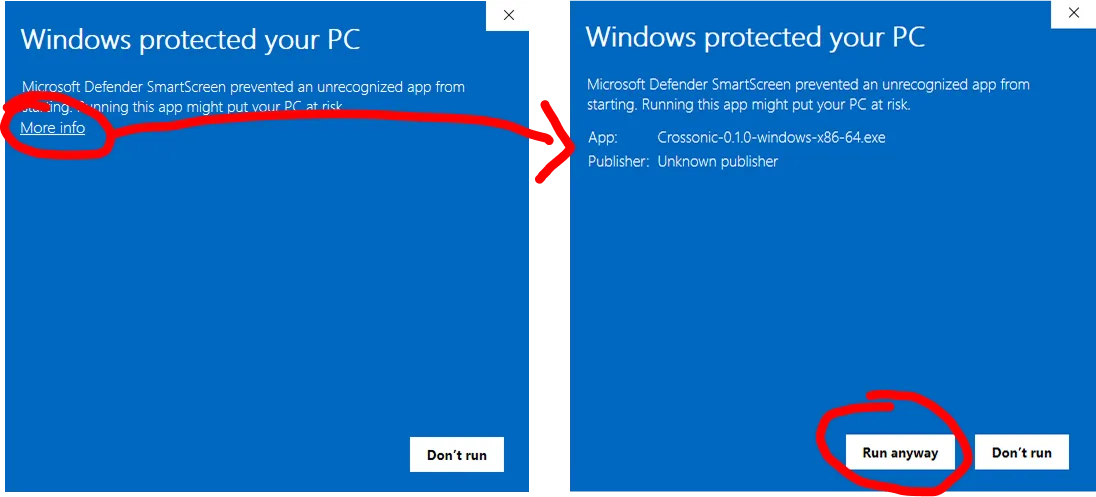
After that the installer should pop up. Just accept the license and click next until Crossonic is installed.
Update
Section titled “Update”Starting with version v0.1.0 the app is able to update itself. Simply click Install when prompted that a new version is available, then
follow the instructions of the installer.
If you receive a warning popup by Microsoft Defender proceed the same way as during the installation.
To manually install a new version first ensure that you fully exited the app by either right-clicking on the tray icon and clicking Exit or by opening the settings page and clicking on Exit. Then execute the installer of the new version and it will automatically overwrite the old version.
Uninstall
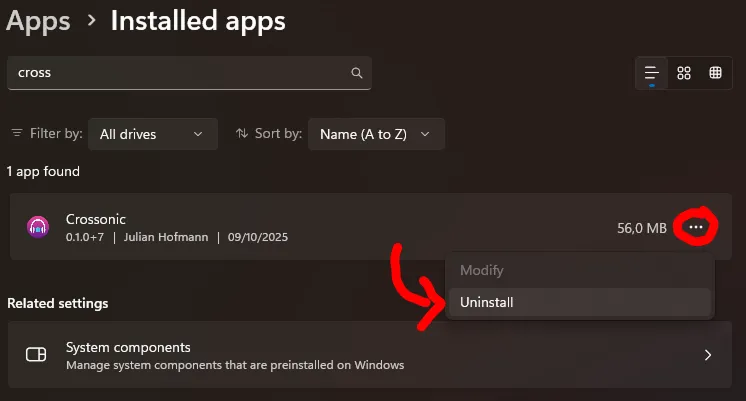
Section titled “Uninstall”Open the settings app and navigate to Apps->Installed apps. Search for Crossonic, click on the three dots and select Uninstall. Then follow the instructions of the uninstaller.